Showing posts with label Youtube. Show all posts

Wednesday, August 20, 2014

How to use YouTube API to search videos

Using YouTube API to search videos

In the past, you needed to register and obtain developer key to use YouTube API. Now you can search videos as anonymous, all data reading is not restricted. Developer key is needed only for things like upload your videos to YouTube programmatically. For example, let say I want to search for Age of Empires videos (AoE is popular strategic game). Simple syntax would be:
http://gdata.youtube.com/feeds/api/videos?q=age+of+empires&prettyprint=true&alt=rss
YouTube service will return XML with search results. To analyze this XML easier, I added prettyprint= true in request. This option format XML output nicely with line breaks and tabs. Complete list of available parameters you can find on http://code.google.com/apis/youtube/2.0/reference.html#Searching_for_videos page. Default XML format is atom, but in this example we'll use alt=rss to get output formatted as RSS feed.
My YouTube Search form will contain one TextBox control named tbSearch, one Button control named btnSearch and GridView to show search results. RSS returned from YouTube API has not structure acceptable for GridView. Because of that, I will use XmlDataSource control to load RSS and additional XSLT file to convert XML to format acceptable for GridView.

Code of XSLT file (named YouTube-Transform.xslt) that converts YouTube XML to XML for GridView control would be:

xml version="1.0" encoding="utf-8"?>
<xsl:stylesheet version="1.0" xmlns:xsl="http://www.w3.org/1999/XSL/Transform"
 xmlns:msxsl="urn:schemas-microsoft-com:xslt"
 xmlns:media='http://search.yahoo.com/mrss/'
 xmlns:yt='http://gdata.youtube.com/schemas/2007'
 exclude-result-prefixes="msxsl">
 <xsl:output method="xml" omit-xml-declaration="yes" indent="yes"/>
 <xsl:template match="/">
  <xsl:element name="items">
   <xsl:for-each select="/rss/channel/item">
    <xsl:element name="item">
     <xsl:attribute name="title">
      <xsl:value-of select="title"/>
     </xsl:attribute>
     <xsl:attribute name="description">
      <xsl:value-of select="media:group/media:description" />
     </xsl:attribute>
     <xsl:attribute name="author">
      <xsl:value-of select="author" />
     </xsl:attribute>
     <xsl:attribute name="keywords" >
      <xsl:value-of select="media:group/media:keywords" />
     </xsl:attribute>
     <xsl:attribute name="videoId" >
      <xsl:value-of select="media:group/yt:videoid"/>
     </xsl:attribute>
     <xsl:attribute name="duration" >
      <xsl:value-of select="media:group/yt:duration/@seconds"/>
     </xsl:attribute>
    </xsl:element>
   </xsl:for-each>
  </xsl:element>
 </xsl:template>
</xsl:stylesheet>


User will type search terms in TextBox and click Search button. I will use XmlDataSource control to bind returned data to GridView. GridView will show search results in one template column. ASP.NET markup code would be like this:

<asp:TextBox runat="server" ID="tbSearch" />
<asp:Button Text="Search" runat="server" ID="btnSearch" onclick="btnSearch_Click" /><br /><br />
<asp:GridView ID="GridView1" runat="server" AutoGenerateColumns="false" EnableViewState="false">
<Columns>
 <asp:TemplateField>
 <ItemTemplate>
 <table width="550"><tr>
 <td valign="top">
 <a href='http://www.beansoftware.com/ASP.NET-YouTube-Player.aspx?id=<%# Eval("videoId") %>'>
 <img border='0' src='http://img.youtube.com/vi/<%# Eval("videoId") %>/1.jpg' /><br /><br />
 <img border='0' src='http://img.youtube.com/vi/<%# Eval("videoId") %>/2.jpg' /><br /><br />
 <img border='0' src='http://img.youtube.com/vi/<%# Eval("videoId") %>/3.jpg' />
 </a>
 </td>
 <td valign="top">
 <h1><a href='http://www.beansoftware.com/ASP.NET-YouTube-Player.aspx?id=<%# Eval("videoId") %>'><%# Eval("title") %></a></h1><br />
 <p><b>Description:</b><%# Eval("description") %></p>
 <p><b>Author:</b> <%# Eval("author") %><br />
 <b>Keywords:</b> <%# Eval("keywords") %><br />
 <b>Duration:</b> <%# Eval("duration") %> seconds</p>
 </td>
 </tr></table>  
 </ItemTemplate>
 </asp:TemplateField>
</Columns>
</asp:GridView>
 
<asp:XmlDataSource ID="XmlDataSource1" runat="server" TransformFile="YouTube-Transform.xslt">
</asp:XmlDataSource>

On search button click, RSS will be loaded from YouTube, converted by XSLT and finally shown in GridView:

[ C# ]
protected void btnSearch_Click(object sender, EventArgs e)
{
 XmlDataSource1.DataFile = "http://gdata.youtube.com/feeds/api/videos?v=2&q=" +
   Server.UrlEncode(tbSearch.Text) + "&alt=rss";
 GridView1.DataSourceID = XmlDataSource1.ID;
}

[ VB.NET ]
Protected Sub btnSearch_Click(ByVal sender As Object, ByVal e As System.EventArgs) Handles btnSearch.Click
 XmlDataSource1.DataFile = "http://gdata.youtube.com/feeds/api/videos?v=2&q=" & _
   Server.UrlEncode(tbSearch.Text) & "&alt=rss"
 GridView1.DataSourceID = XmlDataSource1.ID
End Sub
By default, YouTube API returns first 25 records. You can change that using max-results parameter (max value is 50). To see other videos increase start-index parameter which is 0 by default. For example, if your page size is 20 records and you want to show third page, set start-index = 41 and max-results = 20.

If you are searching life partner. your searching end with kpmarriage.com. now kpmarriage.com offer free matrimonial website which offer free message, free chat, free view contact information. so register here : kpmarriage.com- Free matrimonial website
How to get all information of YouTube video

How to get all information of YouTube video

 To get all video information, use this syntax:

http://gdata.youtube.com/feeds/api/videos/5P6UU6m3cqk
Bolded part is video ID. This link will return all video data in different formats. Default format of feed is atom, other valid values are rss, json and json-in-script. Use alt parameter to change format, for example, to return video data in form of RSS feed set alt=rss, like this:
http://gdata.youtube.com/feeds/api/videos/5P6UU6m3cqk?alt=rss
Returned feed contains data like video title, description, categories, author, date published, rating, duration, keywords, statistics etc. You can load this feed into XPathDocument object and access items using XPath queries. Example code that finds video title and description could look like this:
[ C# ]
using System;
 
// We need System.Xml.XPath namespace to query XML
using System.Xml.XPath;
 
public partial class _Default : System.Web.UI.Page
{
 
 protected void Page_Load(object sender, EventArgs e)
 {
   // Load video information from YouTube
   XPathDocument videoInfo = new XPathDocument(
     "http://gdata.youtube.com/feeds/api/videos/5P6UU6m3cqk?alt=rss");
 
   // Create XPath navigator
   XPathNavigator videoInfoNavigator = videoInfo.CreateNavigator();
 
   // Gets YouTube video title
   string Title = videoInfoNavigator.SelectSingleNode("/item[1]/title").Value;
   // Gets YouTube video description
   string Description = videoInfoNavigator.SelectSingleNode("/item[1]/description").Value;
 
   // Write results
   Response.Write("Video title: " + Title + "
"
+

     "Description: " + Description);
  }
}
[ VB.NET ]
Imports System
Imports System.Web
 
' We need System.Xml.XPath namespace to query XML
Imports System.Xml.XPath
 
Partial Class DefaultVBNET
 Inherits System.Web.UI.Page
 
 Protected Sub Page_Load(ByVal sender As Object, ByVal e As System.EventArgs) Handles Me.Load
   ' Load video information from YouTube
   Dim videoInfo As XPathDocument = New XPathDocument( _
     "http://gdata.youtube.com/feeds/api/videos/5P6UU6m3cqk?alt=rss")
 
   ' Create XPath navigator
   Dim videoInfoNavigator As XPathNavigator = videoInfo.CreateNavigator()
 
   ' Gets YouTube video title
   Dim Title As String = videoInfoNavigator.SelectSingleNode("/item[1]/title").Value
   ' Gets YouTube video description
   Dim Description As String = videoInfoNavigator.SelectSingleNode("/item[1]/description").Value
 
   ' Output results
   Response.Write("Video title: " & Title & "
"
& _

     "Description: " & Description)
 End Sub
End Class


If you are searching life partner. your searching end with kpmarriage.com. now kpmarriage.com offer free matrimonial website which offer free message, free chat, free view contact information. so register here : kpmarriage.com- Free matrimonial website

How to show YouTube video on ASP.NET page

How to show YouTube video on ASP.NET page

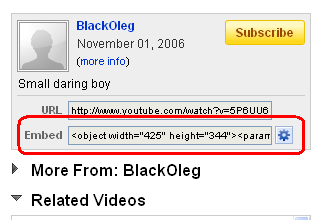
Showing YouTube video on web page is simple. If you browse YouTube and watch some interesting video, notice Embed text box on the right side, like in image bellow:
Getting code to embed YouTube video


Click on small button with blue gear opens additional options like video size, player's colors, border etc. Code inside text box looks similar to this:

<object width="425" height="344"><param name="movie" value="http://www.youtube.com/v/5P6UU6m3cqk&hl=en_US&fs=1&"></param><param name="allowFullScreen" value="true"></param><param name="allowscriptaccess" value="always"></param><embed src="http://www.youtube.com/v/5P6UU6m3cqk&hl=en_US&fs=1&" type="application/x-shockwave-flash" allowscriptaccess="always" allowfullscreen="true" width="425" height="344"></embed></object>


Now, to show this video on web page, you need only to copy this code and paste it on your page, which is good enough for static pages and small number of videos. Code includes several parameters to adopt it on different pages. Most important parameter is video ID (bolded in code above) used to specify which video you want to show. If we want to display other video, simply place its ID on appropriate place in code. To change it with ASP.NET server side code we can use simple Response.Write() method. On the same way, all other parameters could be changed to better fit in website design. Complete list of YouTube player parameters you can find on YouTube Embedded Player Parameters page.

If you are searching life partner. your searching end with kpmarriage.com. now kpmarriage.com offer free matrimonial website which offer free message, free chat, free view contact information. so register here : kpmarriage.com- Free matrimonial website

Tuesday, August 19, 2014

How To Make Money With YouTube in Pakistan, India, Srilanka etc.

How To Make Money With YouTube in Pakistan, India, Srilanka etc. 

Hello Friends This is Very New Method To Make Money Online With YouTube Videos In Pakistan, India And Other Countries Which Doesn't Available For YouTube Partner Program Here is the Very Useful Trick That You Can Make Money Online With YouTube Videos Via YouTube Partner Pragramme.

What is a YouTube Partner Program :

The YouTube Partner Program was Introduced By YouTube For Her Videos Publisher For Make Money With Her Videos With Very Easy Method of Make Money Online.
The YouTube Partner Program is Available in Some Countries Because Some Privacy of Poilicies.
Now YouTube Partner Program is Currently Not Available in Pakistan But we Can Make Money with YouTube videos in Pakista by This By this Trick.

How To Make Money Online With YouTube In Pakistan :

Here is The Trick Which Teach You How To Make Money Online with YouTube videos by Easy Method.
Just Follow Our Methods And Enjoy The YouTube Earning :
  1. Download ULTRA SURF Software For Changing The IP Address 
  2. Now Go To YouTube Open Dashboar Go To Channel Setting And Click On advance Setting And Change Your County To UK 
  3. Upload At Least One Video ( Don't Copy another Video )
  4. Now Click on Feature Tab

  5. And Click on Enable My Account


After The Click On Enable My Account Your Application is Sent To Google Adsense For YouTube
Hosted Account.
After The 2,3 Hours You Have Received A Email From Google Adsense Of Your Account Approval
 

Enable Google Adsense Ads on Your YouTube Videos :

Just Follow These Steps
  1. Go To The Videos Manager on YouTube 
  2. Check All Your Videos 
  3. Click On Auctions Tab And Now Click Enable Monetization

Success :

Now You Can Make Money Online With Google Adsense And YouTube Videos For Free
 

Upload More Videos To Increase Your Earning :

Follow Some Steps To Increase Your Earning :
  • Upload At least 2 Videos Per Day
  • Upload Most Popular Videos Like Gaming, Songs, Movies Trailers Like That
 

If you are searching life partner. your searching end with kpmarriage.com. now kpmarriage.com offer free matrimonial website which offer free message, free chat, free view contact information. so register here : kpmarriage.com- Free matrimonial website